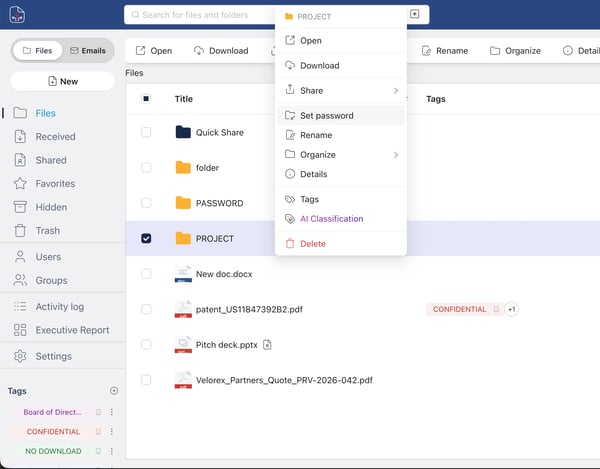
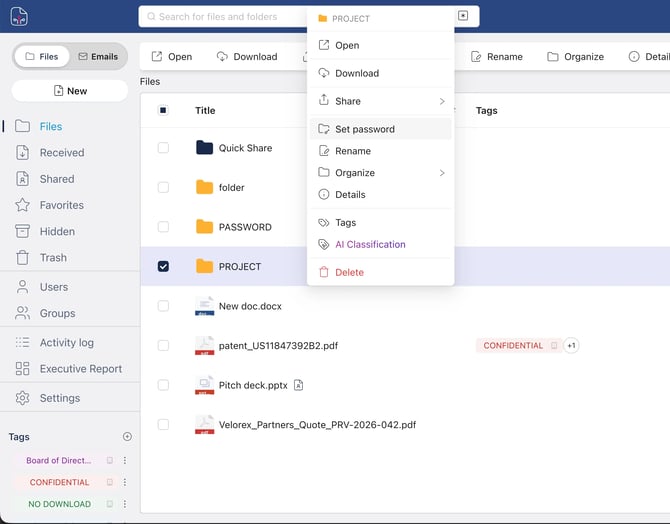
By selecting a file or clicking the three dots ⋮ you can access the following actions. Each one is designed to help you manage files securely and efficiently within the FileGrant platform.
| Description | |
| Open | Opens the file directly in FileGrant. You can also double‑click the file to open it. Use this when you want to view or work on the document online in a controlled, secure environment. |
| Open locally | Opens the file in the local FileGrant desktop application. Any changes you make locally are automatically synchronized with the online version, keeping local and cloud copies aligned. |
| Download | Downloads a clear (unencrypted) copy of the file, when allowed by your permissions and associated tags. This is useful for offline access or for using the file in other applications, within your organization’s security policies. |
| Download encrypted | Generates a protected PDF that contains the encrypted file. The document can only be opened after authenticating on FileGrant, so sensitive content remains protected even after download. |
| Sync locally | Saves the encrypted file in the FileGrant folder on your device and keeps it synchronized with the online version. This is ideal for files you use frequently and want fast, secure local access to, without losing central control. |
| Share | Opens the sharing panel so you can share the file with other users or groups. Here you can define who can access the file and under which conditions, enabling secure collaboration. |
| Sell | Enables sale of the file, if this feature has been activated by an administrator. Use this action when you want to make a document commercially available under controlled access rules. |
| Rename | Changes the file name. This helps improve clarity, support version labeling, or align with your internal naming conventions. |
| Organize → Replace | Replaces the current file with an updated version while keeping the same name and ID. This lets you update content without breaking existing links or access permissions |
| Organize → Create copy | Creates a duplicate of the file in your personal area. You can work on this copy independently—for example, to test changes or prepare an alternative version—without impacting the original. |
| Organize → Move | Moves the file to another folder. Use this to keep your workspace organized and aligned with your team’s folder structure and access policies. |
| Organize → Create shortcut | Creates a link to the file that appears in another location. This is useful when the same file must be referenced from multiple projects or folders without duplicating content |
| Organize → Add to favorites | Adds the file to the Favorites section for quicker access. Ideal for documents you consult frequently and want to open in a single click. |
| Organize → Hide | Removes the file from the main view and moves it to the Hidden section. This helps you declutter your workspace without deleting the file or changing its permissions. |
| Details | Opens the side panel with full information about the file and its activity log. Here you can review metadata, permissions, and the history of actions on the file—useful for auditing and compliance. |
| Tags | Applies or removes tags associated with the file, if enabled by an administrator. Tags help classify documents, drive automated protection rules, and make it easier to search for and govern sensitive information. |
| AIGrant | Opens the AI features Classification |
| Delete |
Deletes the file by moving it to the Recycle Bin. This is usually reversible, but should be used with care, especially for shared or business‑critical documents. |