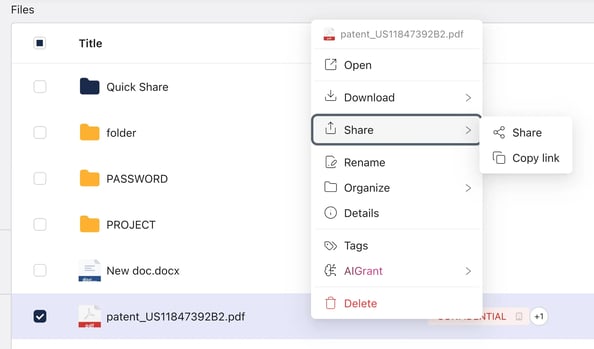
Select a file or click the three-dot menu ⋮ to access the following actions:
|
Action |
Description |
|
Open |
Opens the file on the platform. You can also double-click. |
|
Open Locally |
Opens the file in the FileGrant desktop app. Edits sync automatically to the online version. |
|
Download |
Downloads a plain copy of the file (only if permissions and tags allow it). |
|
Download Encrypted |
Generates a protected PDF containing the encrypted file, openable only via platform authentication. |
|
Sync Locally |
Saves the encrypted file to your local FileGrant folder, keeping it in sync with the online version. |
|
Share |
Opens the sharing panel to send the file to other users or groups. |
|
Sell |
Lists the file for sale (only available if enabled by your administrator). |
|
Rename |
Edits the file name. |
|
Organize → Replace |
Replaces the file with an updated version while keeping the same name and ID. |
|
Organize → Create Copy |
Duplicates the file in your personal space. |
|
Organize → Move |
Moves the file to another folder. |
|
Organize → Create Shortcut |
Creates a shortcut to the file visible in another location. |
|
Organize → Add to Favorites |
Pins the file to the Favorites section for quick access. |
|
Organize → Hide |
Removes the file from the main view, moving it to the Hidden section. |
|
Details |
Opens a side panel with full file information and activity history. |
|
Tags |
Applies or removes tags on the file (if enabled by your administrator). |
|
AIGrant |
Opens the AI menu: Classification, Summary, and Chat with Document (if enabled by your administrator). |
|
Delete |
Moves the file to Trash. |