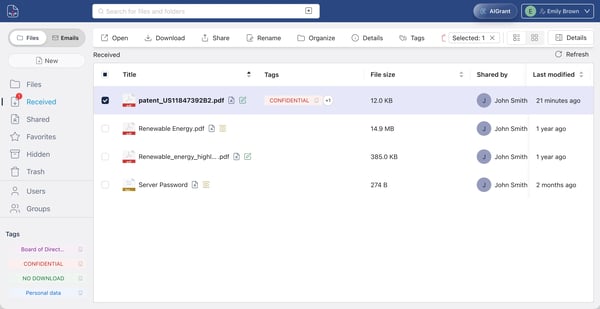
The Received section contains only files that other users have shared with you. Your own uploaded files are not shown here, nor are files you've shared with others. This section is exclusively for what has been sent to you.
What you'll see for each received file
|
Field |
Description |
|
Status icons |
Show your access type (Read-Only or Editor) and other info such as local sync status. See the icon guide for the full breakdown. |
|
File name |
The name of the received file. |
|
Tags |
Security labels applied to the file by the sender or your admin. |
|
File Size |
How large the document is. |
|
Shared By |
The name of the person who sent the file to you. |
|
Last Modified |
When the file was last edited. |
Files you receive always remain under the control of whoever shared them. The sender can modify your permissions or revoke access at any time.
Refreshing the list
There's a Refresh button in the top right of the Received section. Click it to reload the page and see any new files that have been shared with you.
💡 Tip: Check the icon next to the file name: a yellow eye means Read-Only (view only), a green pencil means Editor (you can also edit it).